Settings
Your business profile, your audiences and competitors, and the preferences that shape every article PressLoom writes.
Settings live in two places in the left sidebar, both under Core:
- General Settings holds the Business tab, the Audience & Competitors tab, and a Google Search Console tab.
- Articles Settings holds the Preferences tab and the Blog tab.
Every setting on these pages belongs to one website. If you run more than one site in PressLoom, switch sites with the picker at the top of the sidebar first, then change the setting. Nothing you set on one site carries over to another.
Business
This is the profile PressLoom drafted when it scanned your domain during onboarding. Every keyword and every article is written against it, so it is worth reading once and correcting anything that is off.
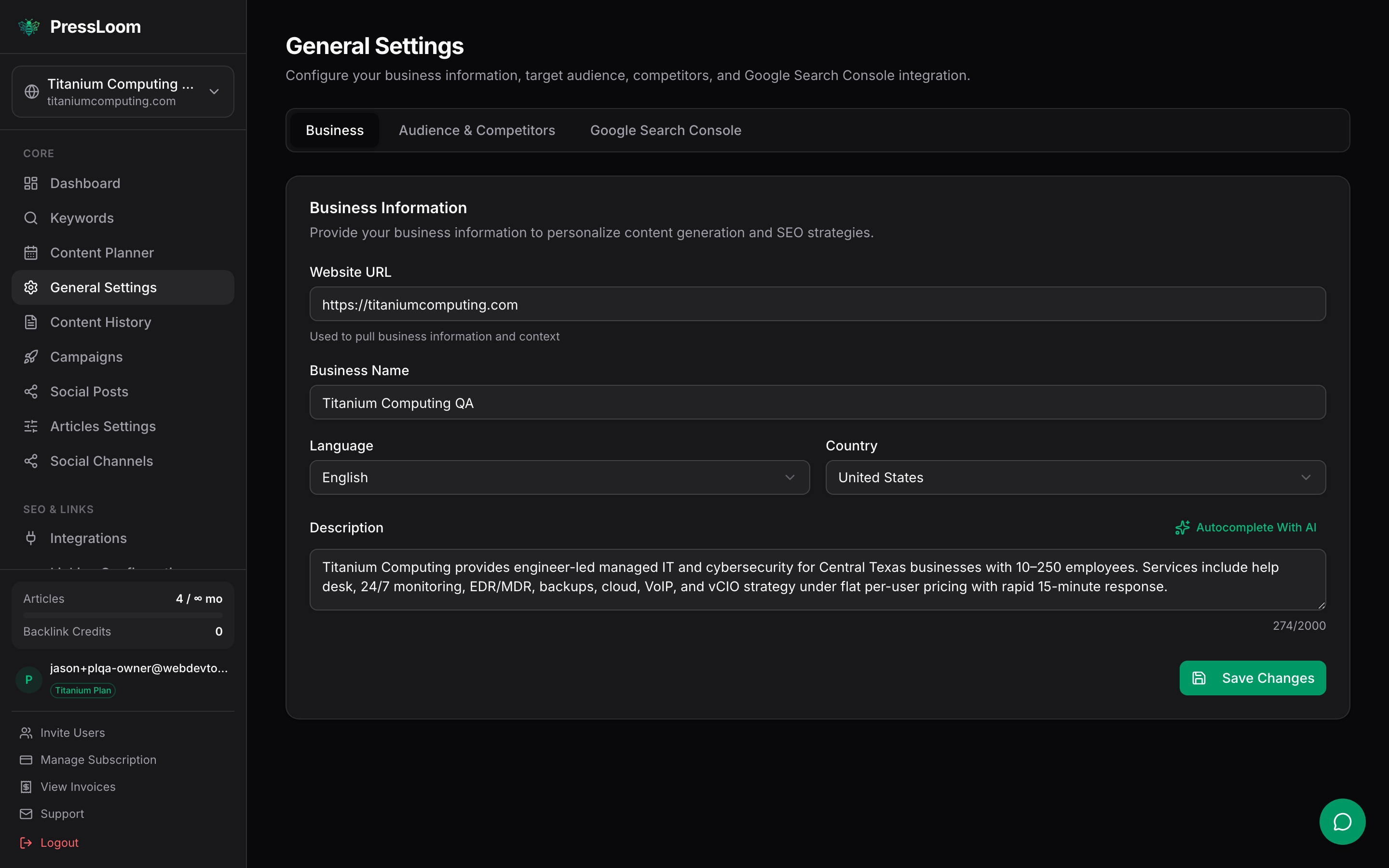
The fields:
| Field | What it does |
|---|---|
| Website URL | The site this project belongs to. It is the address PressLoom links back to in article call-to-action sections, and the domain it treats as yours. |
| Business Name | Used by name inside articles, most visibly in the closing call to action. |
| Language | The language articles are written in. |
| Country | Steers spelling, currency and local phrasing. |
| Description | What you do, who you do it for, and where. This is the single biggest lever on article quality on this page. |
Write the description the way you would explain the business to a new hire. Name your services, your customers and your service area. Two or three specific sentences beat a paragraph of adjectives. PressLoom leans on this text when it decides what an article should actually say.
Autocomplete With AI reads the address in the Website URL field and drafts the description for you. It fills the box but does not save it. Read what it wrote, fix anything wrong, then click Save Changes.
Nothing on this tab is saved until you click Save Changes at the bottom right. You get a confirmation when it lands.
Changing the Website URL repoints the whole project at a different domain. It does not move the site connection you set up under Integrations. If you need to point PressLoom at a new address, talk to Titanium first.
Audience & Competitors
These two lists are what keyword research runs on. They matter more than anything else in Settings.
Why they matter
When you click Generate Keywords, PressLoom looks at what your competitors rank for, filters that against who you say you are selling to, and returns the gaps. With no audiences and no competitors on file, it has nothing to compare you against, so it refuses to run and tells you to add them in Settings first. See Help if you have hit that message.
Beyond that first gate, the two lists pull in different directions, and you want both:
- Competitors decide the subject matter. Add the firms you actually lose deals to, by domain. Their content is the pool PressLoom fishes in.
- Target audiences decide the angle and the reading level. They are also handed to the writer, so they shape who each article talks to.
Adding and removing
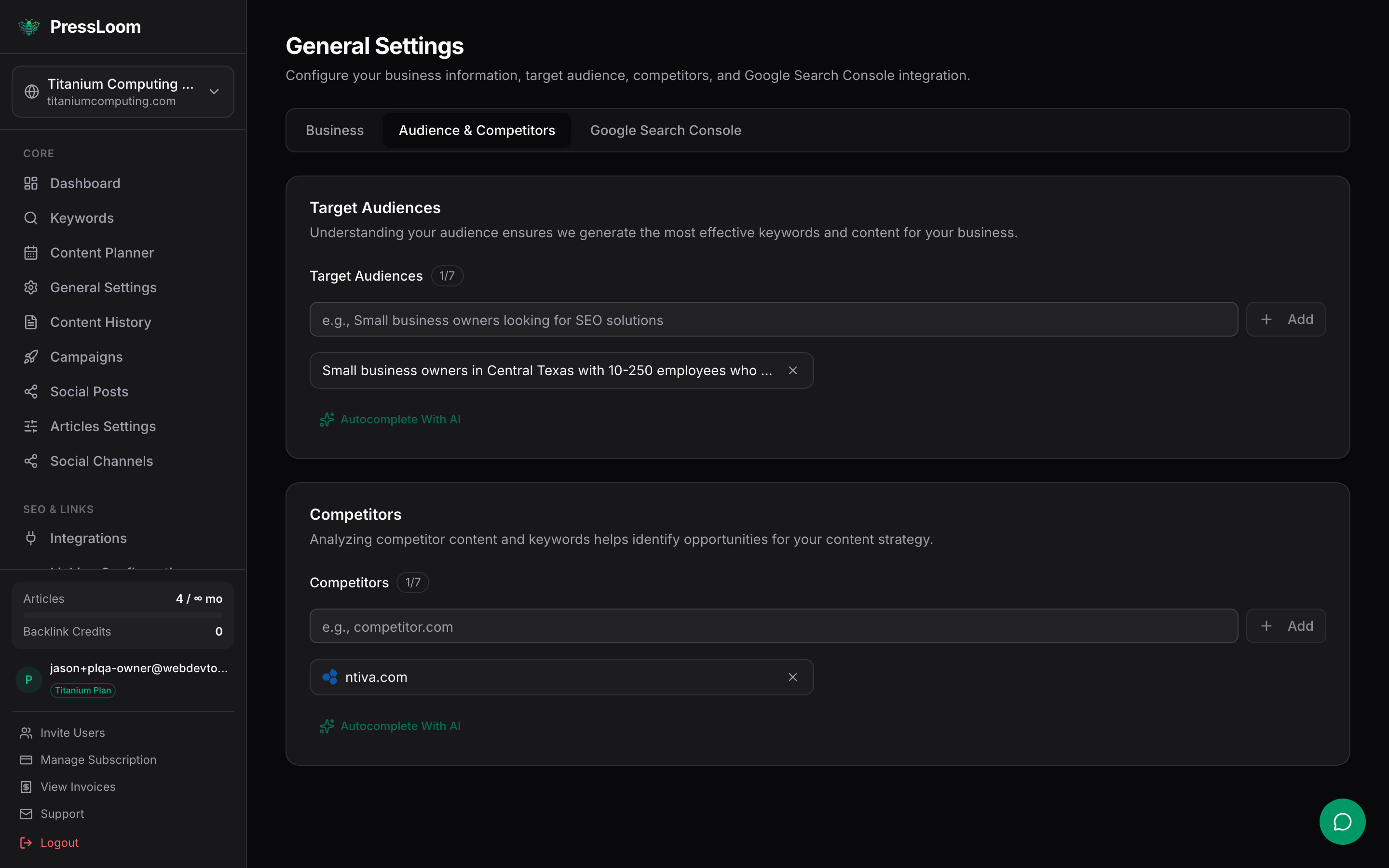
Type into the box and click Add, or press Enter. There is no Save button on this tab. Each entry is stored as soon as you add it, and the x on a chip removes it straight away. You get seven of each. The counter next to the heading tells you where you stand.
For a competitor, paste the domain or the full address. PressLoom trims it down to the bare domain, so https://www.ntiva.com/services is stored as ntiva.com. Duplicates are ignored.
For an audience, write a sentence, not a label. Compare:
| Weak | Useful |
|---|---|
| Small businesses | Small business owners in Central Texas with 10 to 250 employees who have no in-house IT staff |
| Office managers | Office managers at law firms who handle vendor contracts and worry about compliance |
Size, industry, geography and the thing that keeps them up at night are all signal. Vague nouns are not.
The Autocomplete With AI link on this tab is not switched on yet. Type the entries in by hand for now.
Articles Settings: Preferences
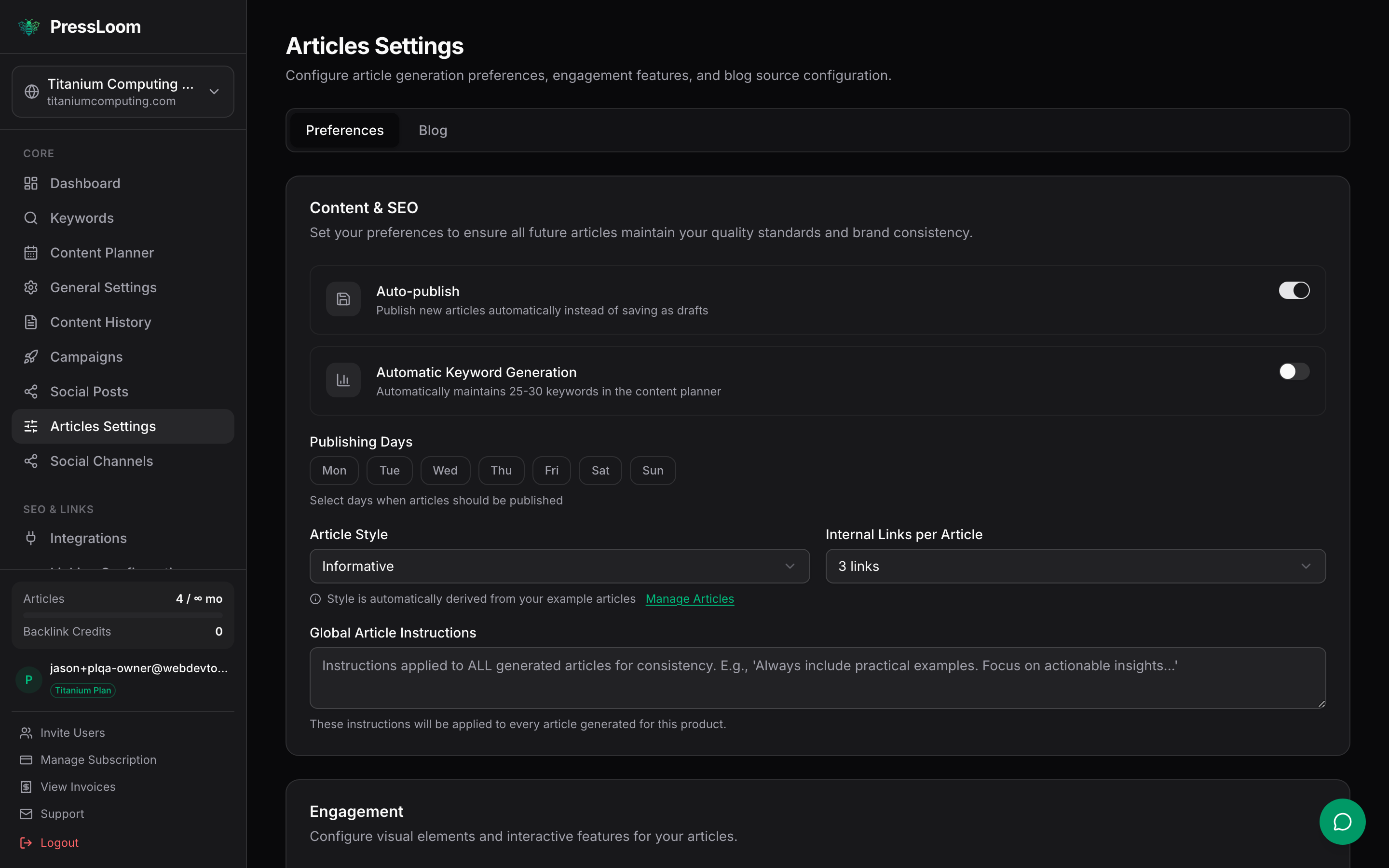
This page controls how articles get written for this site. It has three cards. Everything on all three saves together with the Save Preferences button at the bottom.
Content and SEO
Auto-publish. Two jobs in one switch. When you press Publish on an article, it decides whether PressLoom sends that article as published or as a draft. It also gates the scheduled daily run, which needs it on and which starts once background processing is enabled for your account. One exception: on WordPress the connector plugin's own Post Mode decides draft or live, and it wins over this switch. See Connect your site.
Automatic Keyword Generation. Keeps 25 to 30 keywords topped up in the content planner without you asking. This also runs on the schedule, so it takes effect once background processing is enabled for your account. Until then, refill the planner yourself with the Generate Keywords button.
Publishing Days. The days of the week the scheduled run is allowed to publish on. Most businesses turn Saturday and Sunday off. Same caveat: these days are honoured by the background schedule, not by articles you generate by hand.
Article Style. Six options, from Informative to Technical. Think of this as the fallback voice. If you list example articles on the Blog tab, PressLoom analyses how those are written and matches them, which is a much stronger signal than a dropdown.
Internal Links per Article. One to five links from the new article to pages you already have. PressLoom needs an index of your existing pages to do this, and that index is built by the background site scan, so articles come through without internal links until background processing is enabled for your account. The setting is safe to configure now.
Global Article Instructions. A free-text box added to every article PressLoom writes for this site. Use it for standing rules, not for one-off requests. Good entries look like this:
Never promise same-day onsite response. We quote next business day.
Always mention that we support both Windows and Mac fleets.
Refer to customers as "clients", never "users".
Keep it short and concrete. A page of instructions competes with the rest of the prompt and gets diluted.
Engagement
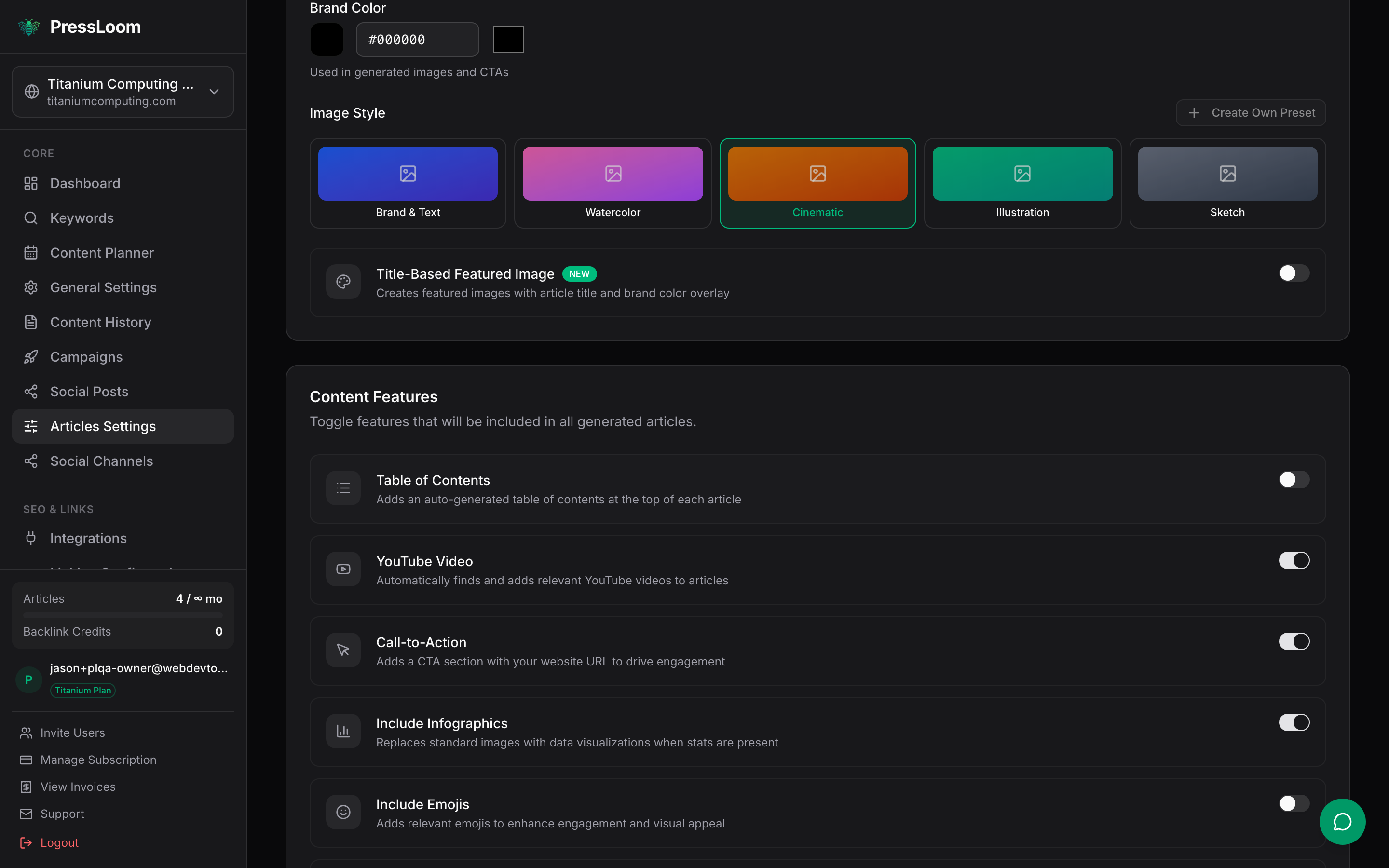
Brand Color and Image Style control the artwork PressLoom generates: the hex value is used as the accent colour, and the five presets set the look, from Brand & Text through Watercolor, Cinematic, Illustration and Sketch. Title-Based Featured Image makes the lead image a title card in your brand colour rather than a scene.
Set these now, but expect text-only articles for the moment. Image generation is not switched on for accounts yet. There is more on that in the Help page.
Content Features
Five toggles that decide what goes inside the article. Not all of them are wired up yet, and it is better you know which is which than find out from an article:
| Toggle | What it does today |
|---|---|
| Table of Contents | Saved, but not applied to articles yet. Leave it where it is. |
| YouTube Video | Works. PressLoom looks for a relevant video and embeds one, usually just above the FAQ section. |
| Call-to-Action | Works. Adds a short closing paragraph naming your business and linking to your website. |
| Include Infographics | Has no effect. It is on its way out of the product. |
| Include Emojis | Works. Off means no emoji anywhere in the article. On uses them sparingly, mostly in table headers. |
Two more toggles sit below those, Mention Similar Products & Tools and First-Person Writing. Both save, and neither reaches the writer yet. Ignore them for now.
Preferences are read when an article is generated. Changing them does not rewrite anything that already exists. If you want an article redone under new settings, generate it again from the planner.
The other two tabs
Articles Settings, Blog tab. Three things live here: your sitemap address, your main blog address, and up to three links to your best existing articles. The sitemap and blog address are what the site scan uses to build the internal link index. The example articles are what PressLoom reads to learn your voice. If you have decent writing on your site already, filling this in is the cheapest quality win available.
General Settings, Google Search Console tab. Not switched on yet. Skip it. Titanium will let you know when connecting Search Console is available.