Help and FAQ
The questions that come up most, what to do when something looks wrong, and who to email.
Signing in and your account
How do I sign in?
Go to pressloom.io/login and use your email address and password. The eye icon at the right of the password field shows what you typed, which is worth using if the password came to you in an email.
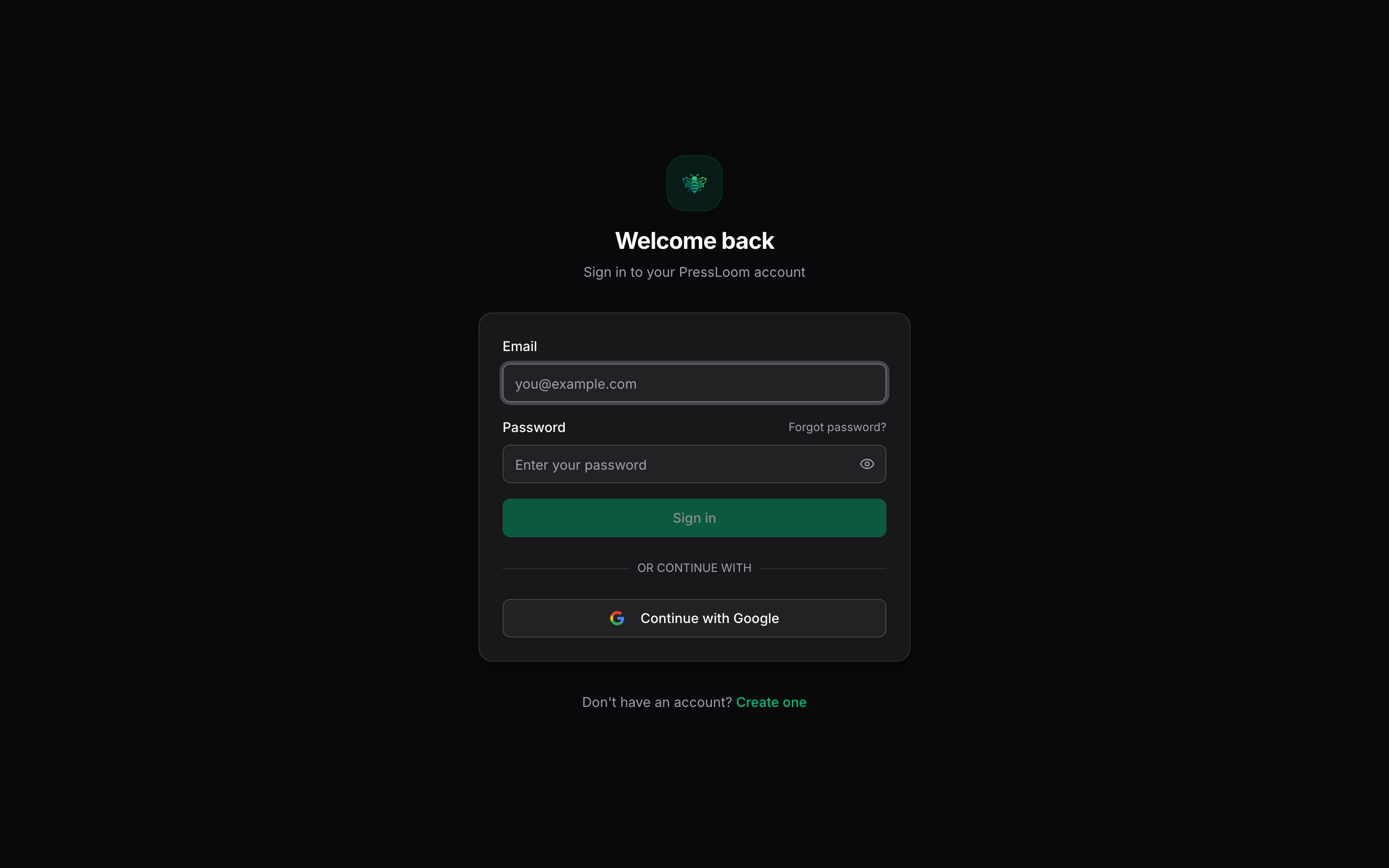
Ignore the Continue with Google button. Google sign-in is not switched on yet, so it will not get you in. Email and password is the way in for now.
I forgot my password. How do I get back in?
Click Forgot password? on the sign-in page and enter your email address. PressLoom emails you a reset link. Open it, set a new password, and sign in with it.
Three things to know:
- The link is good for one hour. After that, ask for a fresh one.
- Asking for a new link cancels the previous one, so always use the most recent email.
- You can only request three resets an hour for the same address. Past that you get told to try again later.
The page says the same thing whether or not it recognises the address, which is deliberate. If nothing arrives in a few minutes, check your junk folder, then email Titanium and someone will reset it for you by hand.
Can I create my own account? Where do I pay?
Titanium sets accounts up. There is no checkout inside PressLoom and no card to enter. If you need another login for someone on your team, or a second website added, ask Titanium and it gets provisioned for you.
Keywords and the planner
Why does Generate Keywords tell me to add competitors or audiences?
Because keyword research runs on those two lists. PressLoom compares what your competitors cover against who you sell to, and returns the gaps. With both lists empty there is nothing to compare, so it stops with:
No competitors or target audiences configured. Add them in Settings first.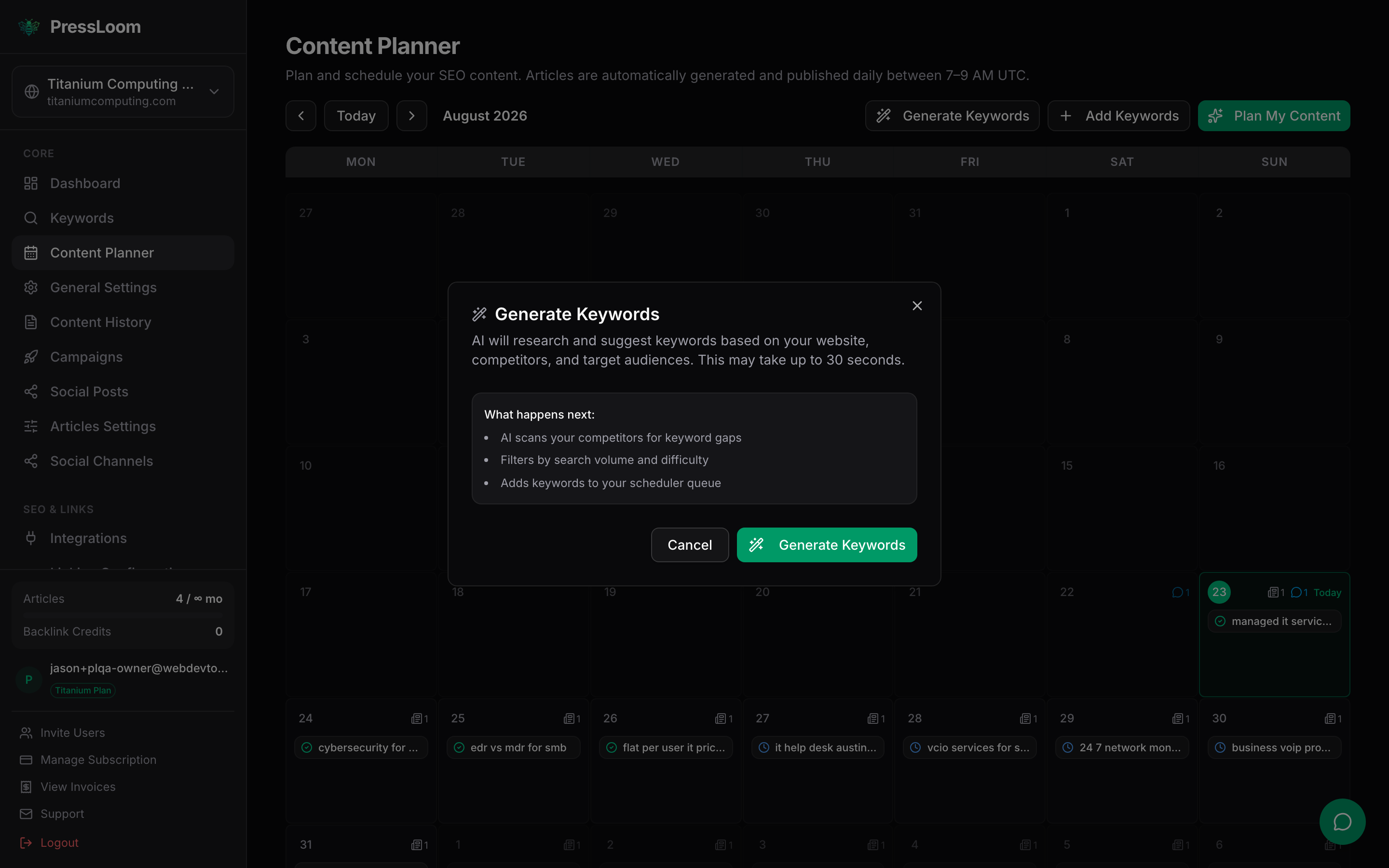
Add at least one of each under General Settings > Audience & Competitors, then try again. One competitor and one audience clears the block, but three or four of each gives much better keywords. There is a longer explanation on the Settings page.
How many keywords can I have at once?
Sixty active ones per website. Active means queued, scheduled or currently generating. Published and removed keywords do not count. Once you are at sixty, Generate Keywords stops and tells you how many you have, and you need to clear some out before adding more.
Generating is also capped at ten runs an hour per account, which is far more than anyone needs in practice.
The planner says articles are generated and published daily between 7 and 9 AM UTC. Is that happening?
Not until background processing is enabled for your account. Everything on a schedule, the daily article run, the automatic keyword top-up, the publishing days you picked in Settings and the site scan that produces internal links, waits on that.
Nothing about that stops you working today. Open the planner, click a keyword card, and use Create & Publish or Pre-Create to produce that article right now. That path runs immediately and does not depend on background processing.
Articles
How long does an article take?
About two minutes. You get somewhere between three and five thousand words, with headings, a key takeaway box, a FAQ section, meta title and meta description, and a YouTube embed if that toggle is on.
Keep the tab open while it runs. Closing it mid-generation is the main way people end up with a half-finished article.
Why did my article fail?
An article can fall over part way through: a research step comes back empty, an outside service times out, or the writing step returns nothing usable. When that happens the article is marked Failed, the keyword card turns red on the planner, and PressLoom emails your organisation to say so.
Click Retry on the red card. Most failures are transient and the second run goes through. If the same keyword fails twice, leave it alone, work on another one, and email Titanium with the keyword text. A keyword that fails repeatedly usually means something specific is wrong, not that the system is down.
Can I change an article before it goes to my site?
Yes. Open the article from Content History and click Edit Article. The reading view is replaced by the raw text of the article, written in Markdown: # for headings, **bold** for bold, > for the key takeaway box. Edit what you want and click Save. Cancel throws your changes away, so save before you navigate off.
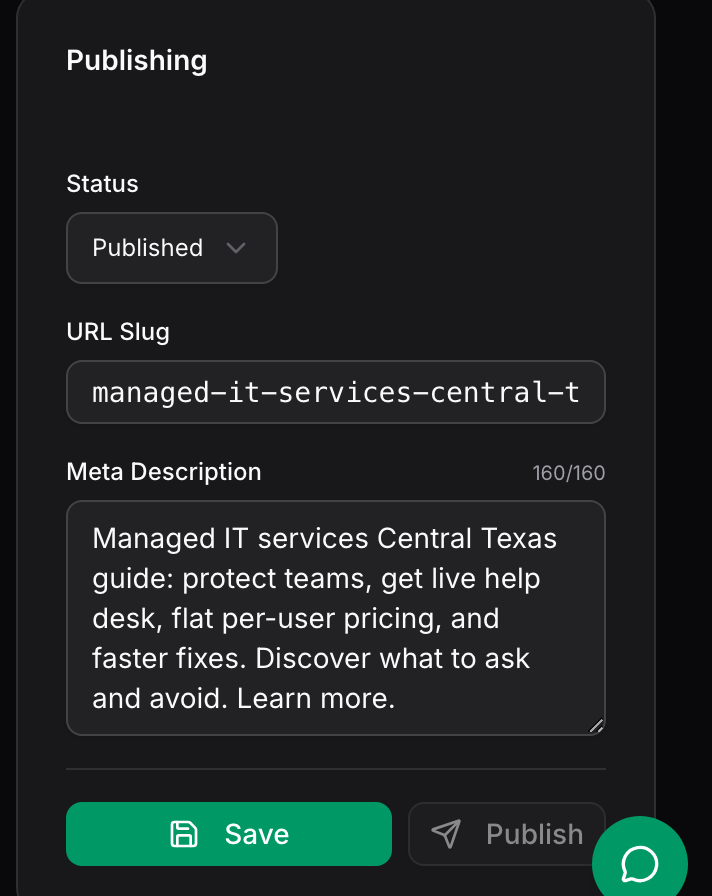
You can also fix the URL slug and the meta description in the Publishing card on the right, then save. Do that before you publish, not after.
Why are there no images in my articles?
Image generation is not switched on for accounts yet. Articles come through as text, and the Image column in Content History shows a generic file icon rather than a picture.
The image settings under Articles Settings > Preferences, brand colour, image style and the title-based featured image, all save correctly and will be used the moment generation is live. Until then, if an article needs a picture, add it in your own site after publishing. Titanium will tell you when this changes.
What do Volume and Difficulty mean on an article?
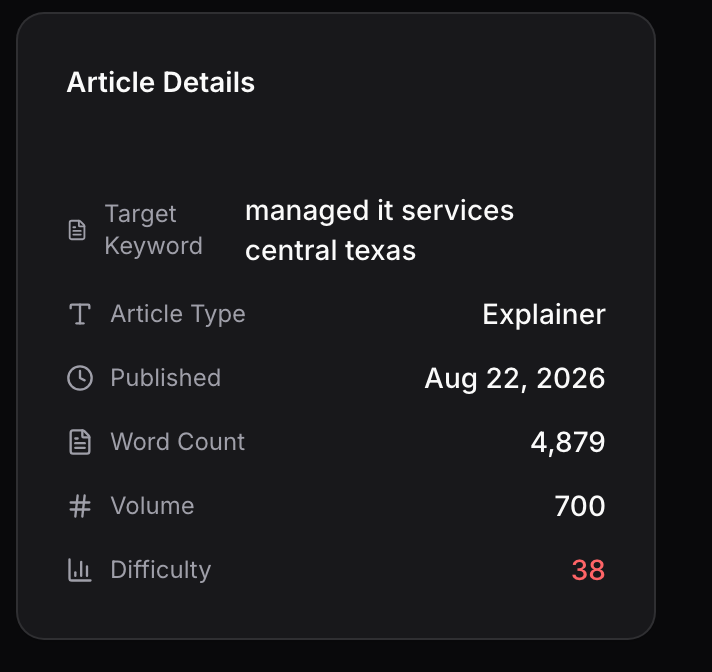
Volume is roughly how many people search that phrase in a month. Higher means more potential traffic and usually more competition. Difficulty is a 0 to 100 estimate of how hard it is to rank for, and it turns red as it climbs. Article Type is the shape PressLoom picked for the piece, such as Explainer, Comparison or How-to. Word Count is what actually got written.
You do not need to act on any of these. They are there so you can see why a keyword was worth writing about.
Publishing
I clicked Publish and the article still says Draft.
Publishing needs a site connected under Integrations. With nothing connected there is no destination, so the status stays Draft.
Check the Integrations page. Your site should be listed at the top with a green Connected badge. Click Test next to it. If the test fails, the connection needs attention before any publish will work, and that is on the Connect your site page.
Where did my published article go?
To your website. On WordPress it lands as a published post at the slug shown in the Publishing card, with your meta title and description attached, so you will find it in Posts and on your blog. On a git-backed site it is committed to your repository as a Markdown file, and it appears on the site the next time the site builds.
If the article says Published in PressLoom but you cannot find it on your site, open Integrations and hit Test. A connection that was working when you set it up can stop working later, usually because a key was rotated or the site moved.
My site is not WordPress. Can I still use PressLoom?
Yes, two ways. If your site lives in a GitHub repository, use the Git / Markdown integration and PressLoom commits articles straight into it. If you would rather move the article yourself, open it and use Download, which gives you Markdown or HTML, and paste that into whatever your site uses.
Can I run more than one website?
Yes. Each website is its own project, with its own keywords, its own articles, its own site connection and its own settings. Switch between them with the picker at the top of the left sidebar. Nothing is shared, so check which site you are looking at before you change a setting. Ask Titanium to add a site.
Getting help
Who do I contact?
Email Jason Brashear at [email protected]. That reaches a person at Titanium who can look at your account directly.
Include three things and you will get a much faster answer: which website you were working on, what you clicked, and what you saw instead of what you expected. If a specific article or keyword is involved, paste the keyword text or the article title.
Something on a screen looks wrong. Should I report it?
Yes, please do. PressLoom is being finished in the open, and parts of the interface are ahead of the machinery behind them. If a number looks impossible, a button seems to do nothing, or a status contradicts what you can see on your own site, send it in. That feedback is what gets the remaining gaps closed in the right order.
Glossary
Keyword. A phrase somebody types into a search engine, and the unit PressLoom plans around. One keyword becomes one article. Keywords carry a search volume, a difficulty score and an article type, and they sit on the content planner on the day they are scheduled for.
Keyword status. Where a keyword is in the pipeline. Queued means researched but not placed on a day yet. Scheduled means it has a date and is waiting, shown with a blue clock on the planner. Generating means the article is being written right now. Pre-created means the article exists as a draft for you to review. Published means the article was written and sent, shown with a green check. Failed means the run stopped part way and the card offers a Retry.
Article status. Where the article itself stands, which is a separate thing from the keyword. Generating is in progress. Draft is written and sitting in PressLoom, not on your site. Published is written and sent to your site. Failed means it did not finish.
Integration. The connection between PressLoom and the place your articles are published: a WordPress site running the PressLoom Connector plugin, or a GitHub repository for a static site. One website can have a connection or not. Without one, articles still get written, they just have nowhere to go except the Download button.
Background processing. The part of PressLoom that does work on a schedule with nobody watching: the daily article run, automatic keyword top-ups, the site scan that builds the internal link index, and automatic publishing. It is enabled per account. Where these docs say "once background processing is enabled for your account", that is what they mean, and everything else in the product works without it.